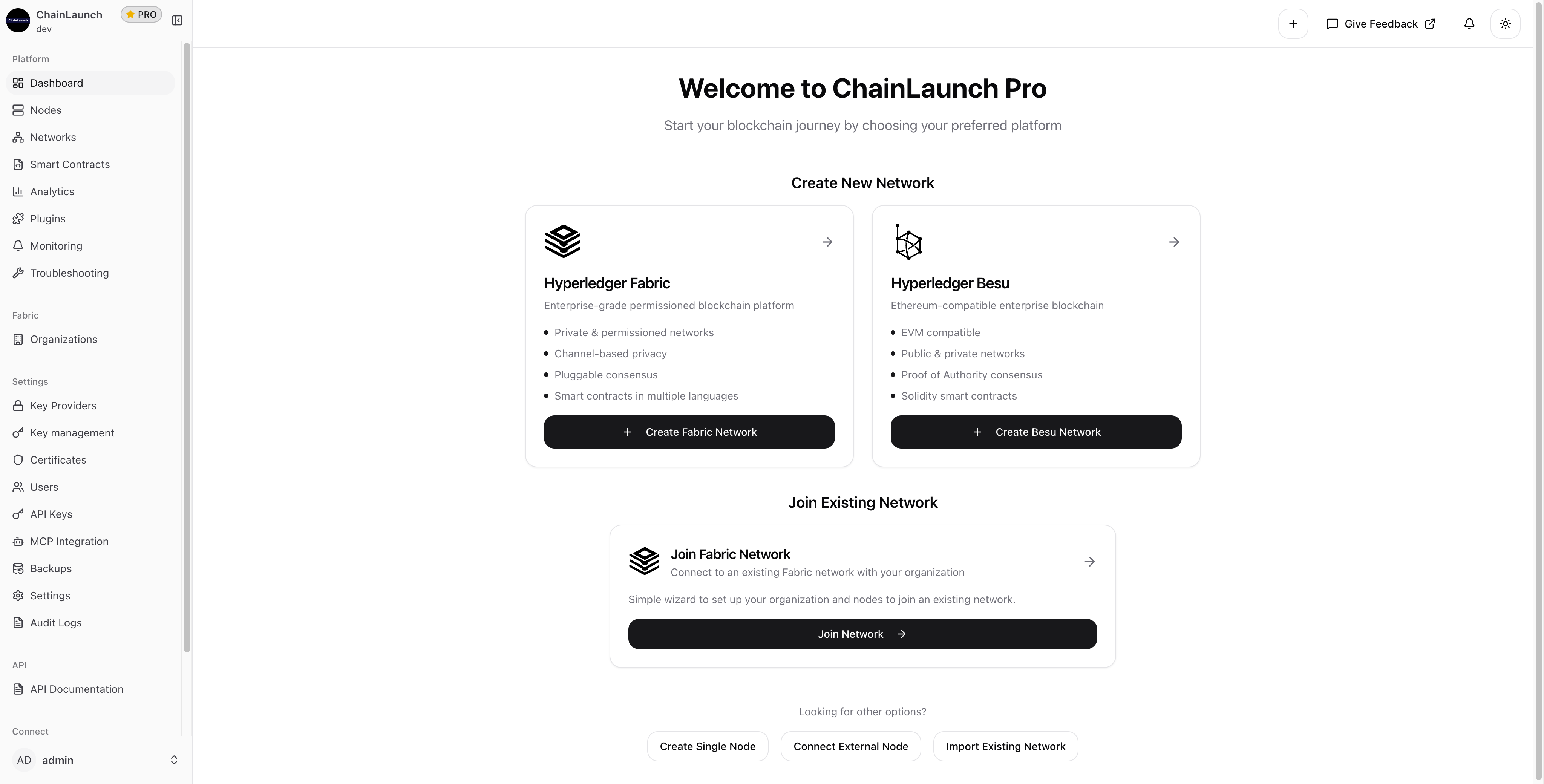
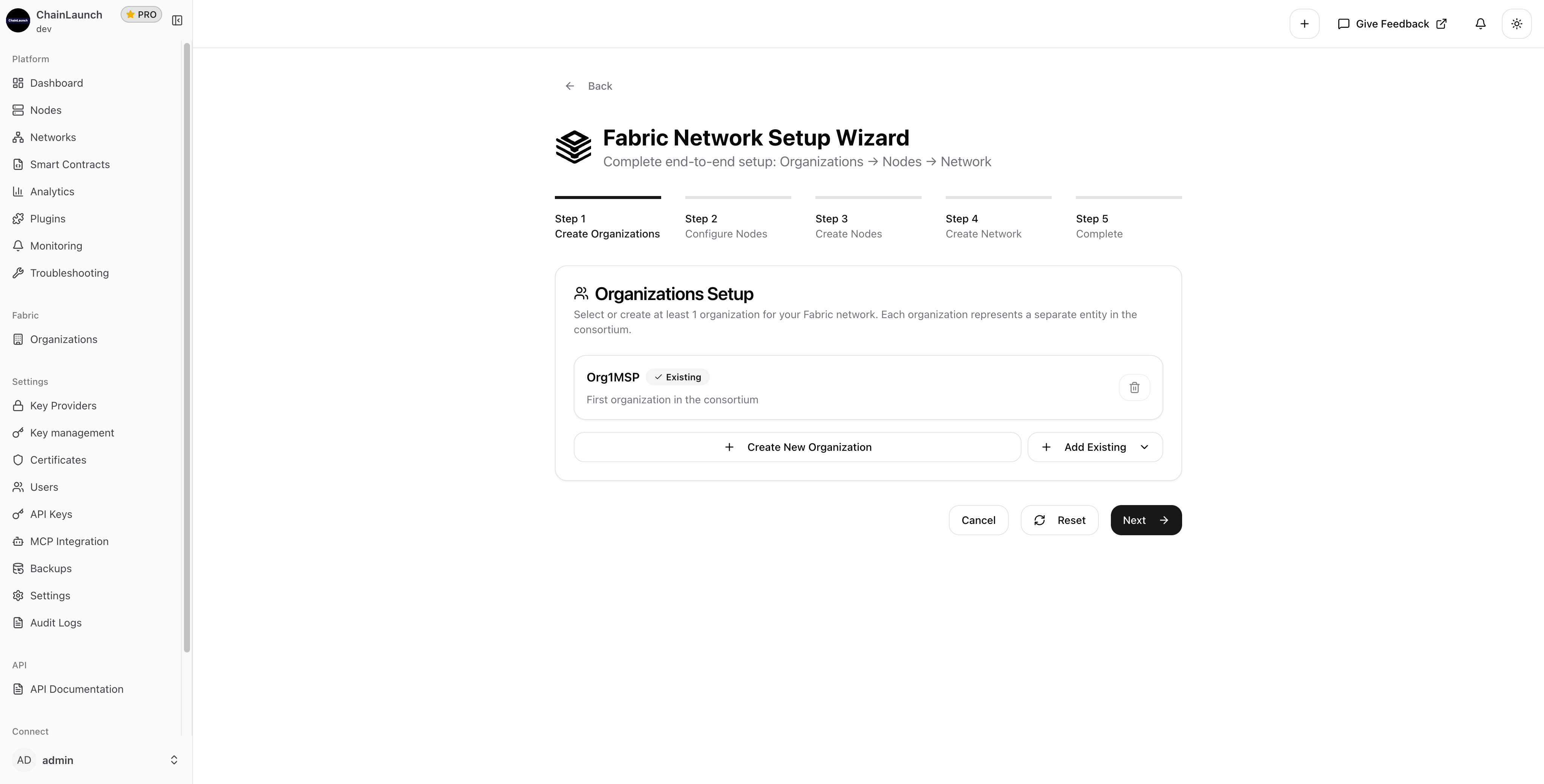
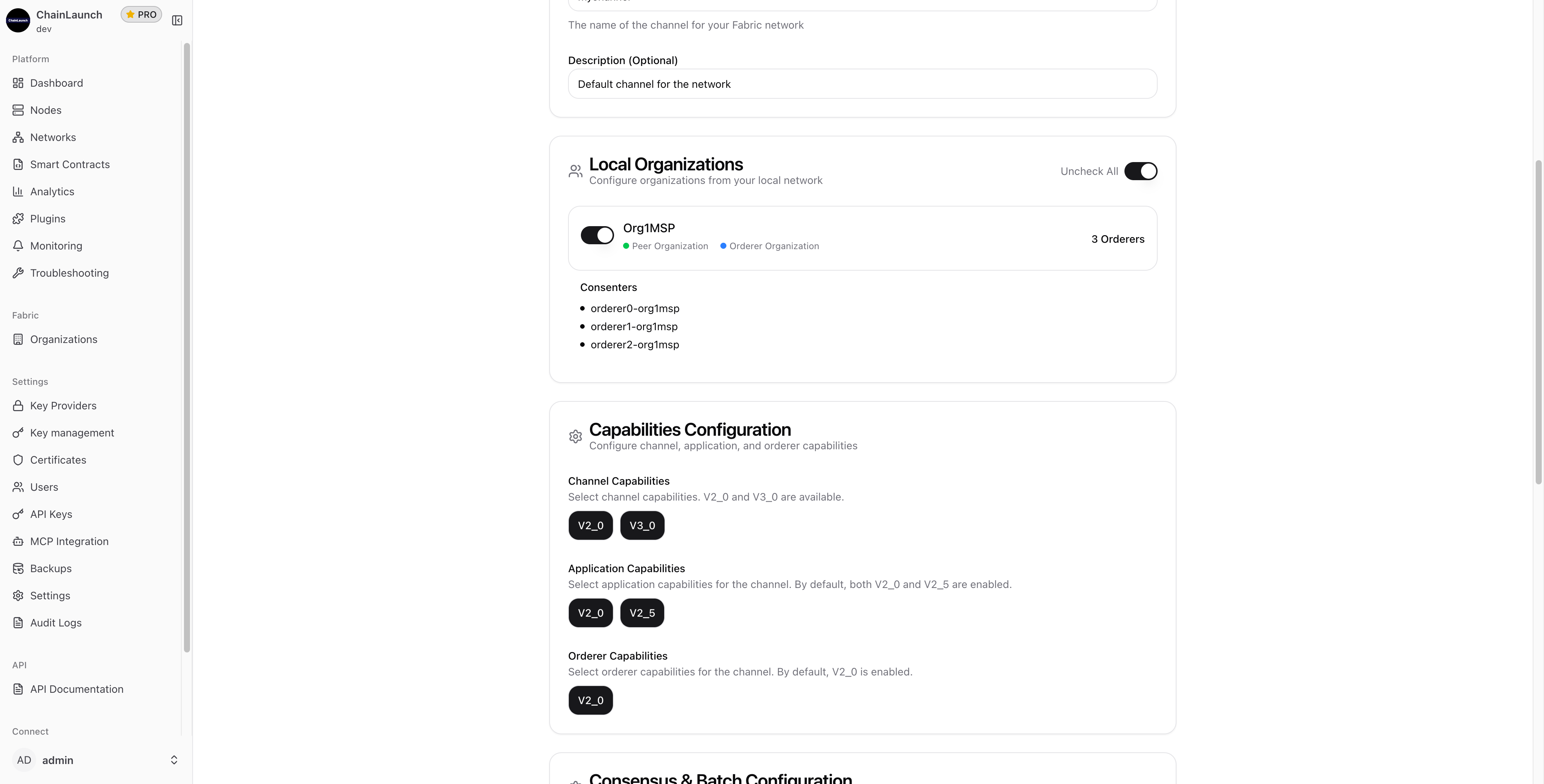
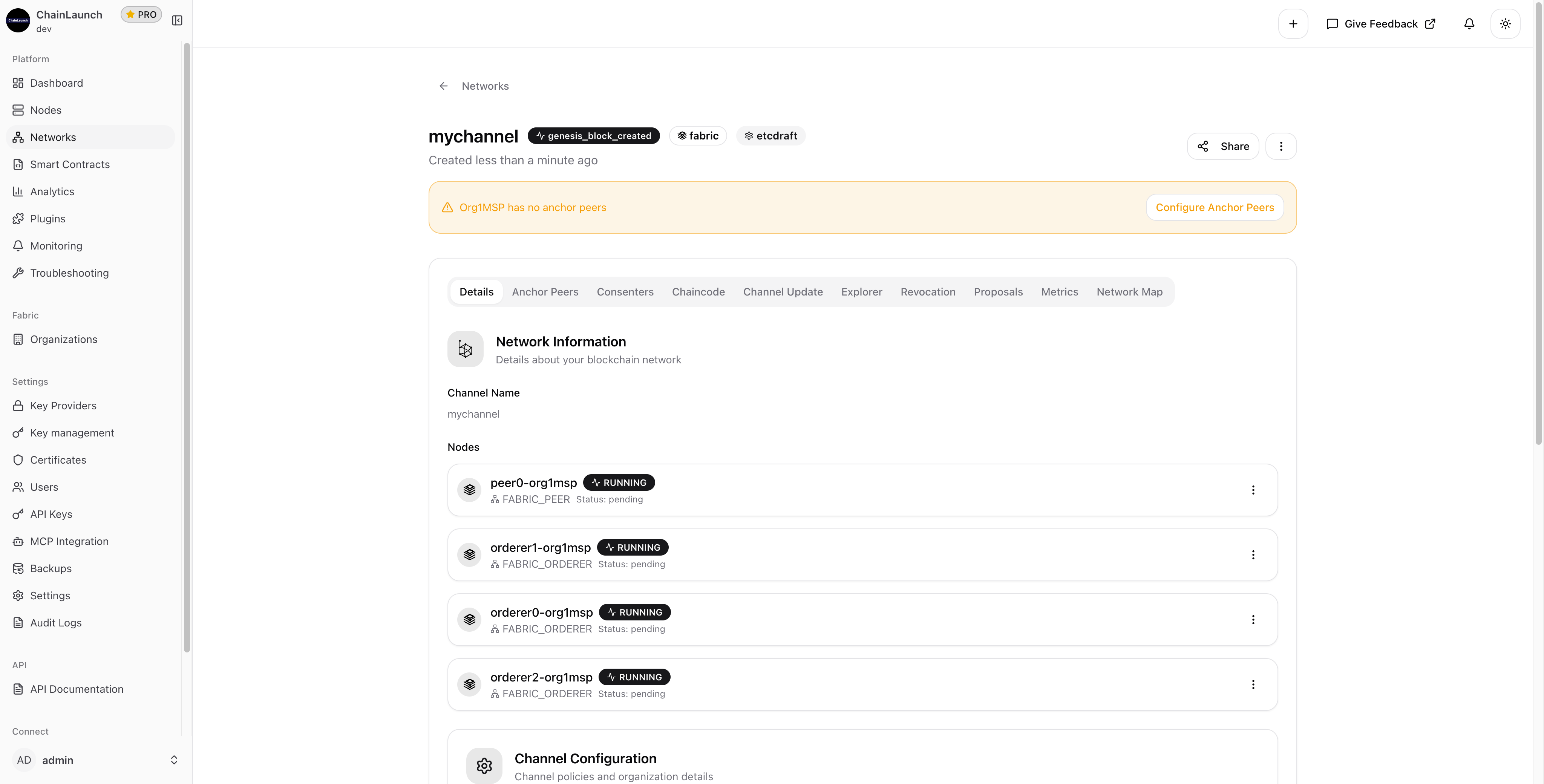
Setting up a Hyperledger Fabric network traditionally requires deep knowledge of cryptographic materials, channel configurations, and complex YAML files. According to the Hyperledger Foundation's 2025 Annual Report, Fabric remains the most widely deployed enterprise blockchain framework, yet teams still spend days on initial network configuration. This guide walks you through deploying a fully configured Fabric network — organizations, peers, orderers, and channels — in under ten minutes.
TL;DR: You can deploy a production-ready Hyperledger Fabric network with organizations, peer nodes, orderer nodes, and an etcdraft channel in under 10 minutes. Fabric powers over 35% of enterprise blockchain deployments (Hyperledger Foundation, 2025), and this tutorial covers every step with screenshots.
This will start the dashboard at http://localhost:3100.
Free resource
3 Config Mistakes That Break Fabric Networks in Production
The checklist our team uses before every Fabric deployment — covers peer gossip, orderer raft settings, and CA enrollment traps that cause 80% of production failures.
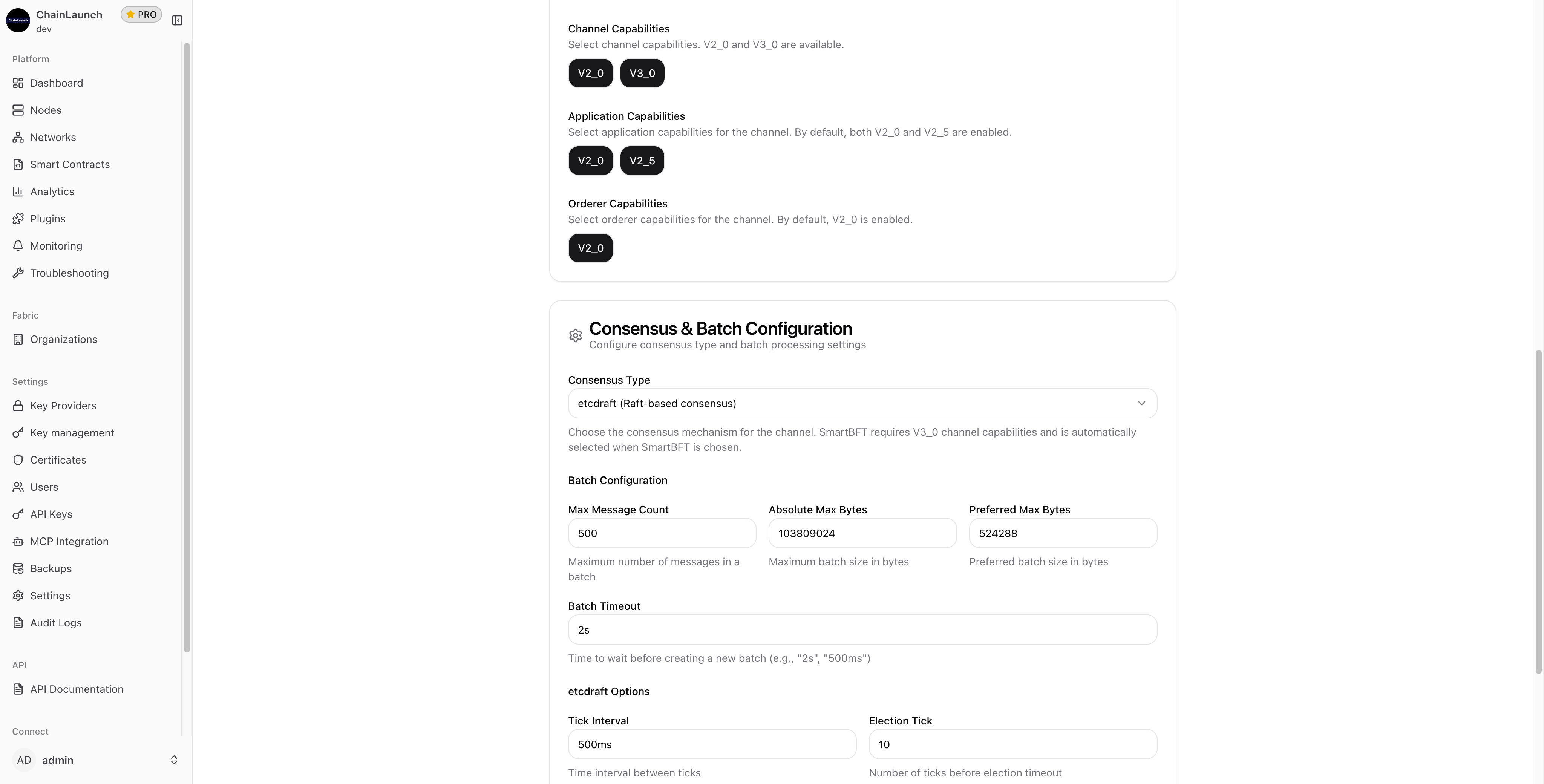
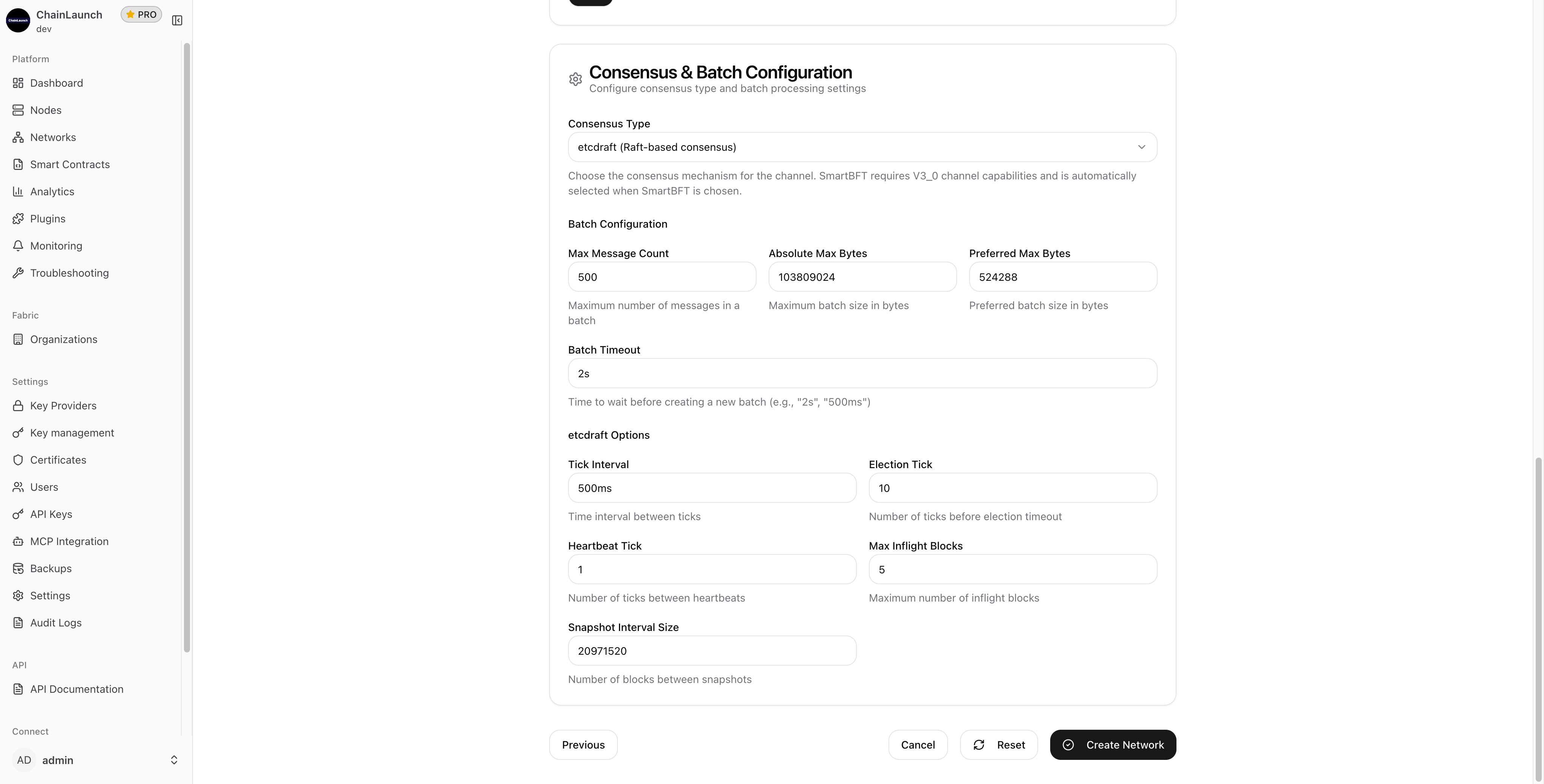
Max Message Count: 500 - Maximum transactions per block
Absolute Max Bytes: 103809024 - Maximum block size
Preferred Max Bytes: 524288 - Preferred block size
Batch Timeout: 2s - Time before creating a new block
etcdraft Options:
Tick Interval: 500ms - Time between Raft ticks
Election Tick: 10 - Ticks before leader election timeout
Heartbeat Tick: 1 - Ticks between heartbeats
Max Inflight Blocks: 5 - Maximum blocks in flight
Free resource
3 Config Mistakes That Break Fabric Networks in Production
The checklist our team uses before every Fabric deployment — covers peer gossip, orderer raft settings, and CA enrollment traps that cause 80% of production failures.
Now that your Fabric network is running, here's what to tackle next.
Most teams move straight to chaincode deployment after standing up their first network. That's the right instinct — a running network without smart contracts isn't doing useful work yet.
Heading for production rather than a first network? Work through our free Fabric deployment checklist, which covers peer gossip, orderer raft settings, and the CA enrollment traps that cause outages.
With a guided wizard, the entire process takes under 10 minutes — from installing the platform to having a running network with peers, orderers, and a configured channel. Manual setup using Fabric's native tools typically takes 1-3 days for teams new to the framework.
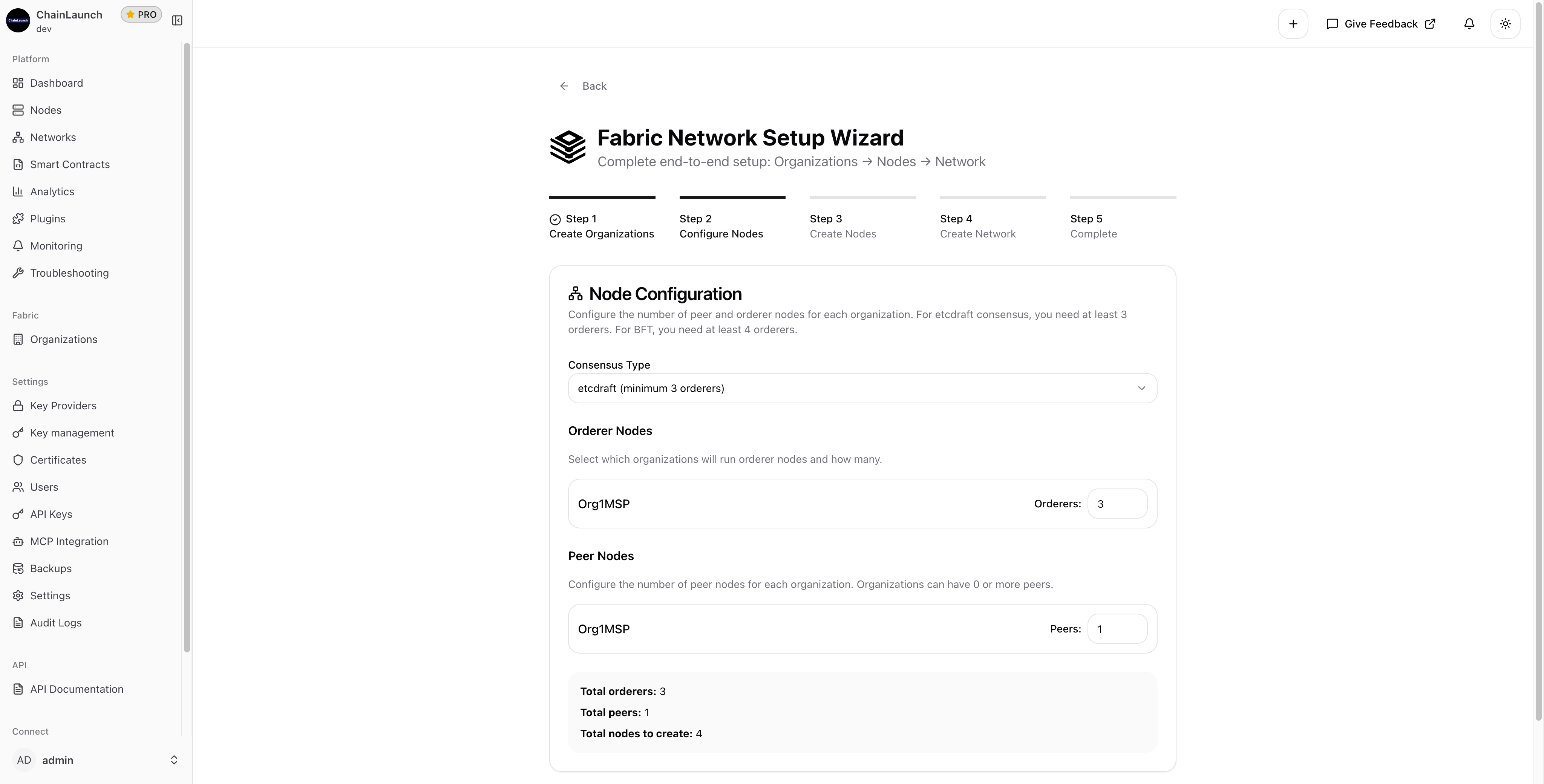
For etcdraft consensus, you need a minimum of 3 orderer nodes to tolerate 1 failure (the formula is 2f+1, where f is the number of tolerated failures). Production environments with stricter uptime requirements often run 5 orderers to tolerate 2 failures. BFT consensus requires a minimum of 4 orderers.
Yes. Fabric supports dynamic consortium changes through channel configuration updates. You can add new organizations, their peers, and orderers to an existing channel without taking the network down. The process involves submitting a channel update proposal that existing members approve.
Etcdraft is a crash fault tolerant (CFT) protocol — it handles node crashes but not malicious behavior. BFT (Byzantine Fault Tolerance) can withstand nodes acting maliciously, but requires more orderers (minimum 4) and has slightly higher latency. Most private enterprise networks use etcdraft because participants are known and trusted.
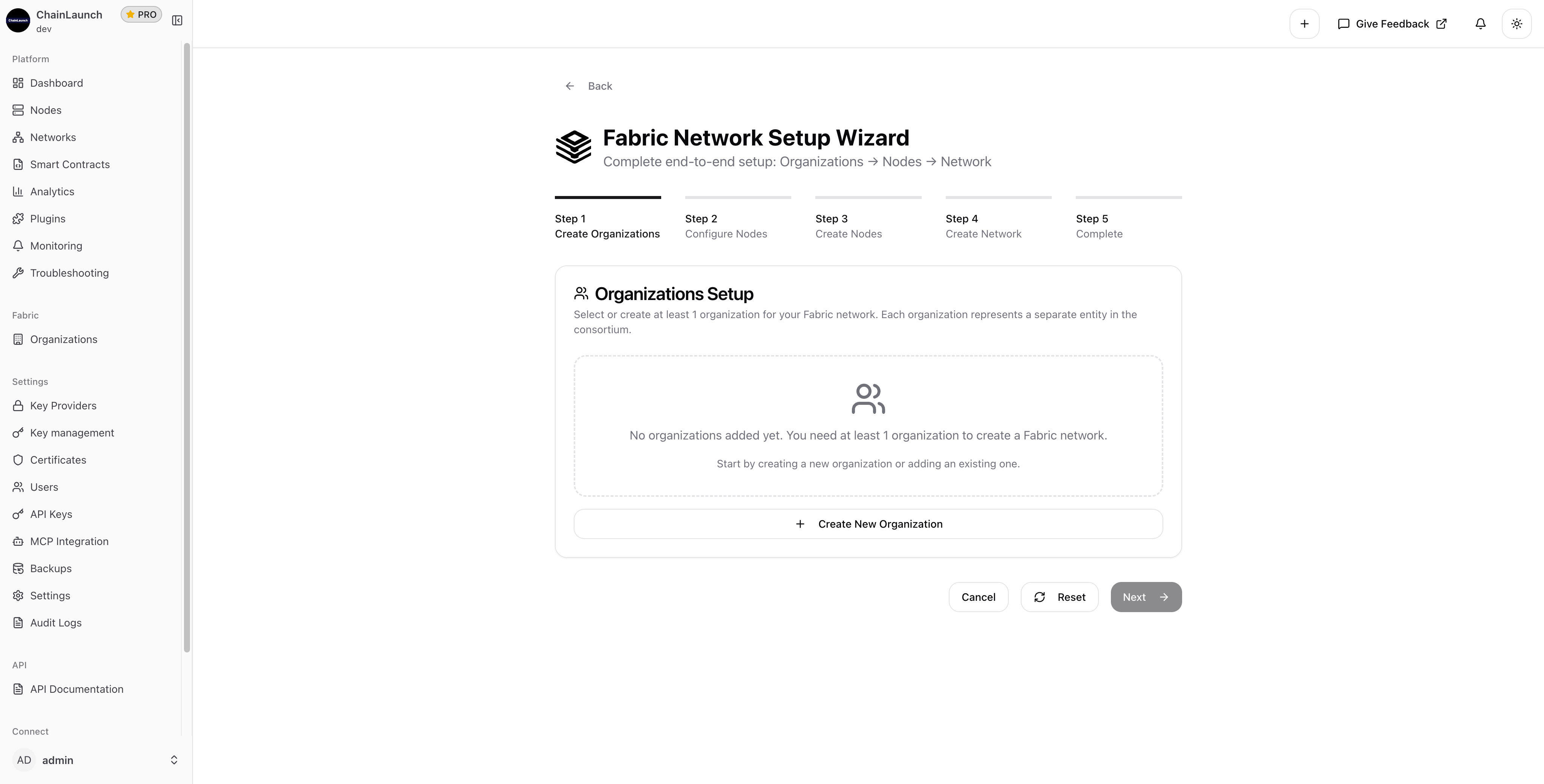
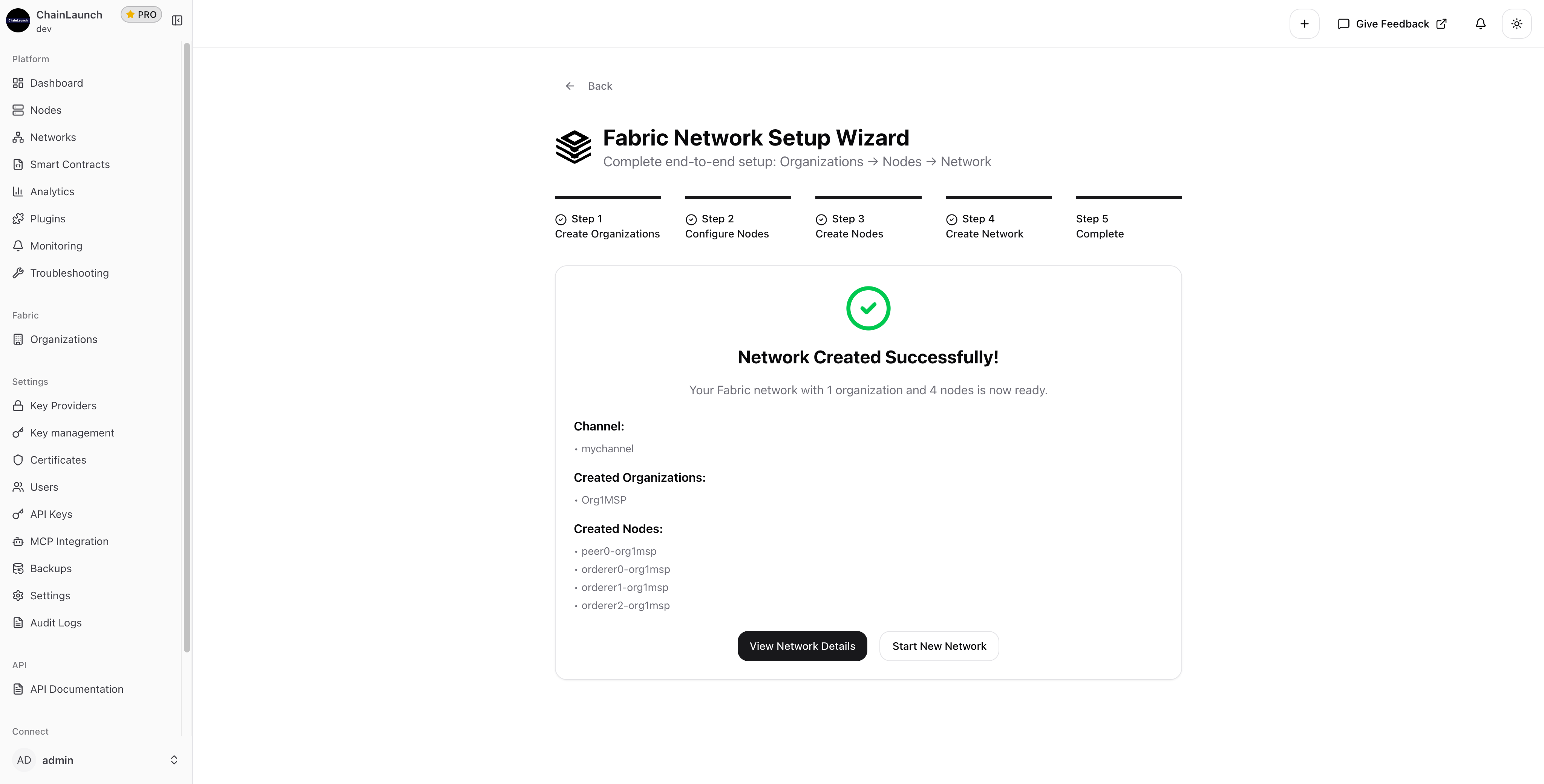
What traditionally required extensive Fabric knowledge and manual configuration now takes just minutes. The wizard handles all the complexity:
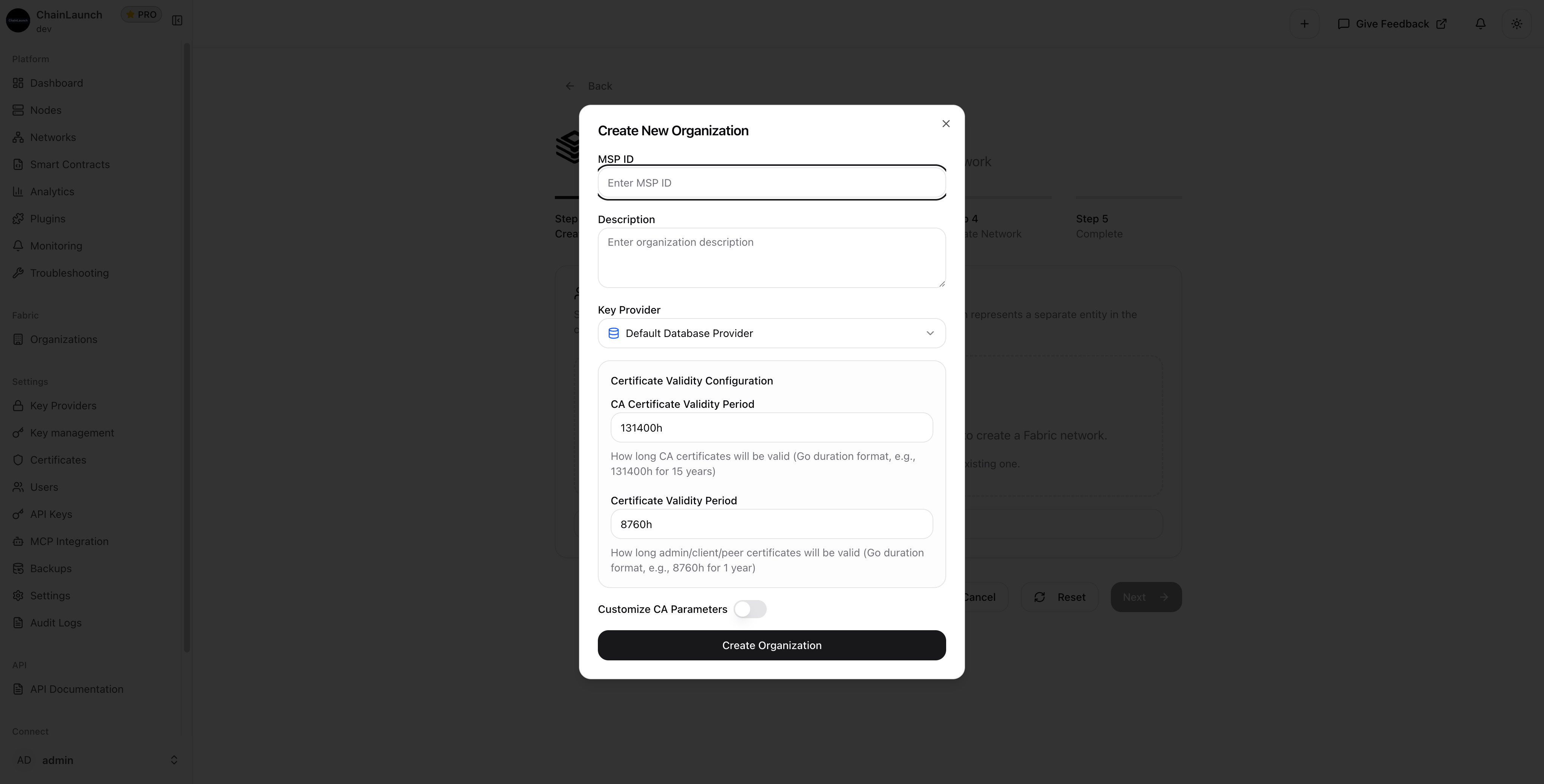
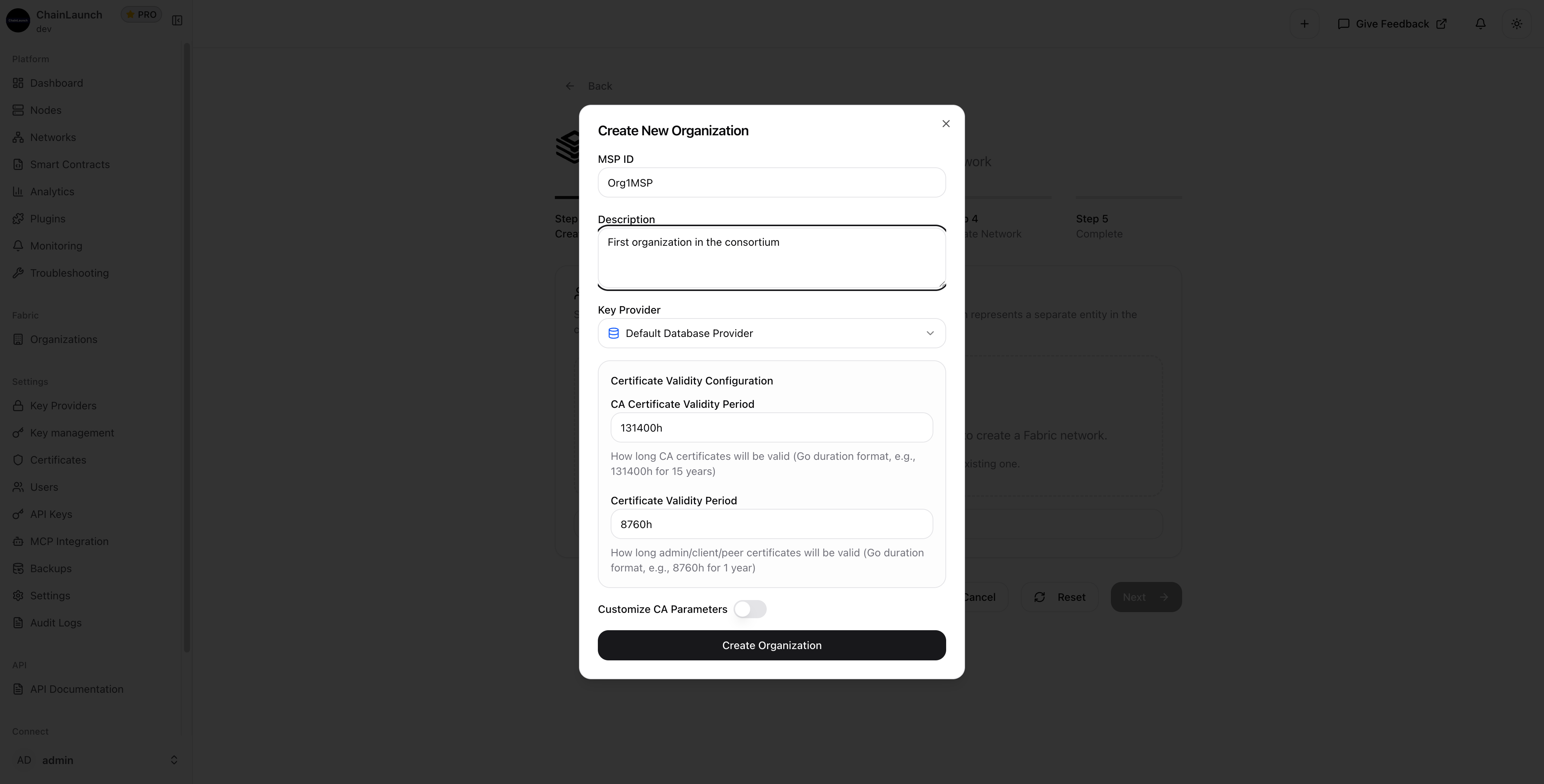
Organization and MSP setup
Certificate generation and management
Genesis block creation
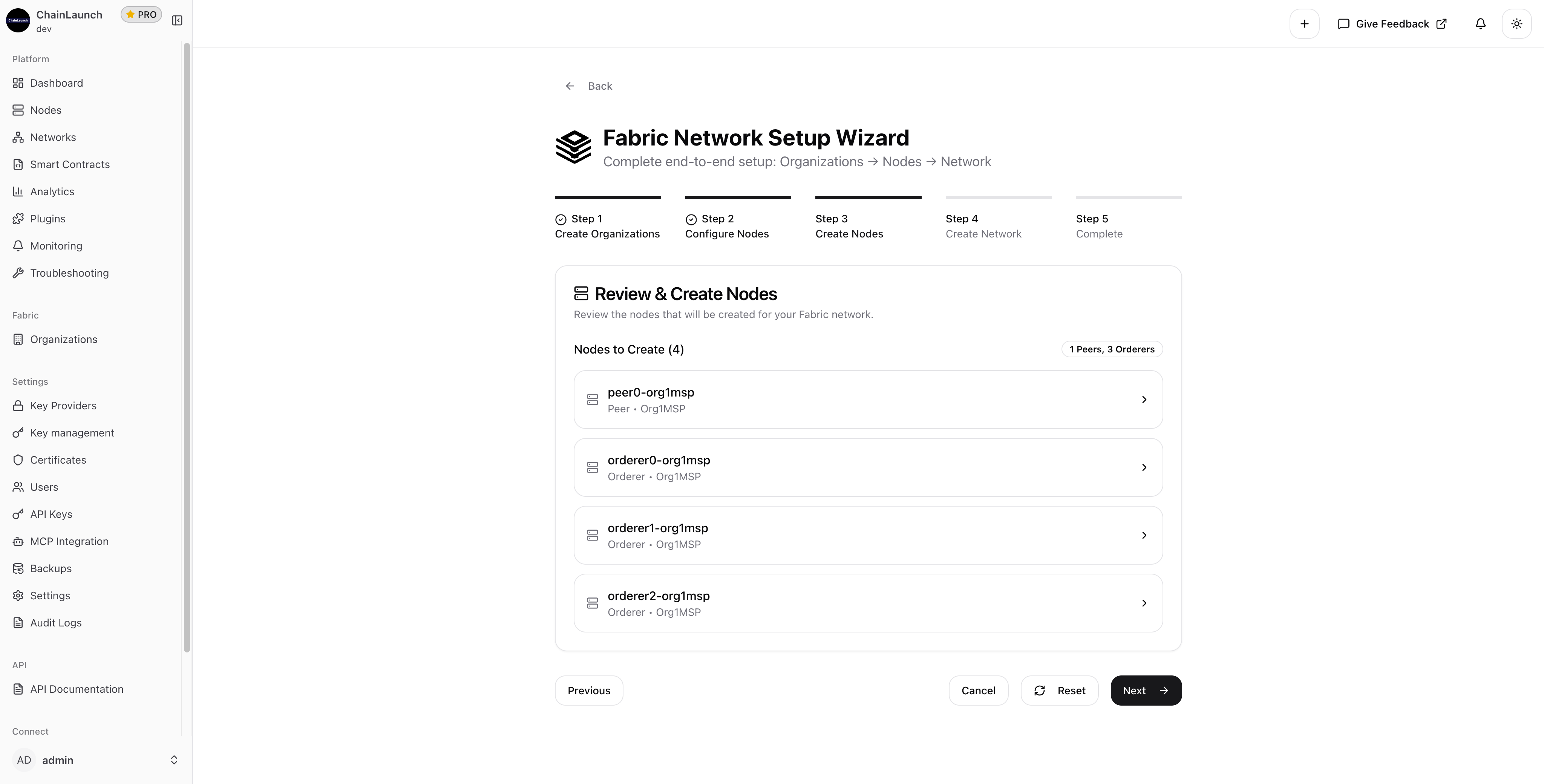
Node deployment and configuration
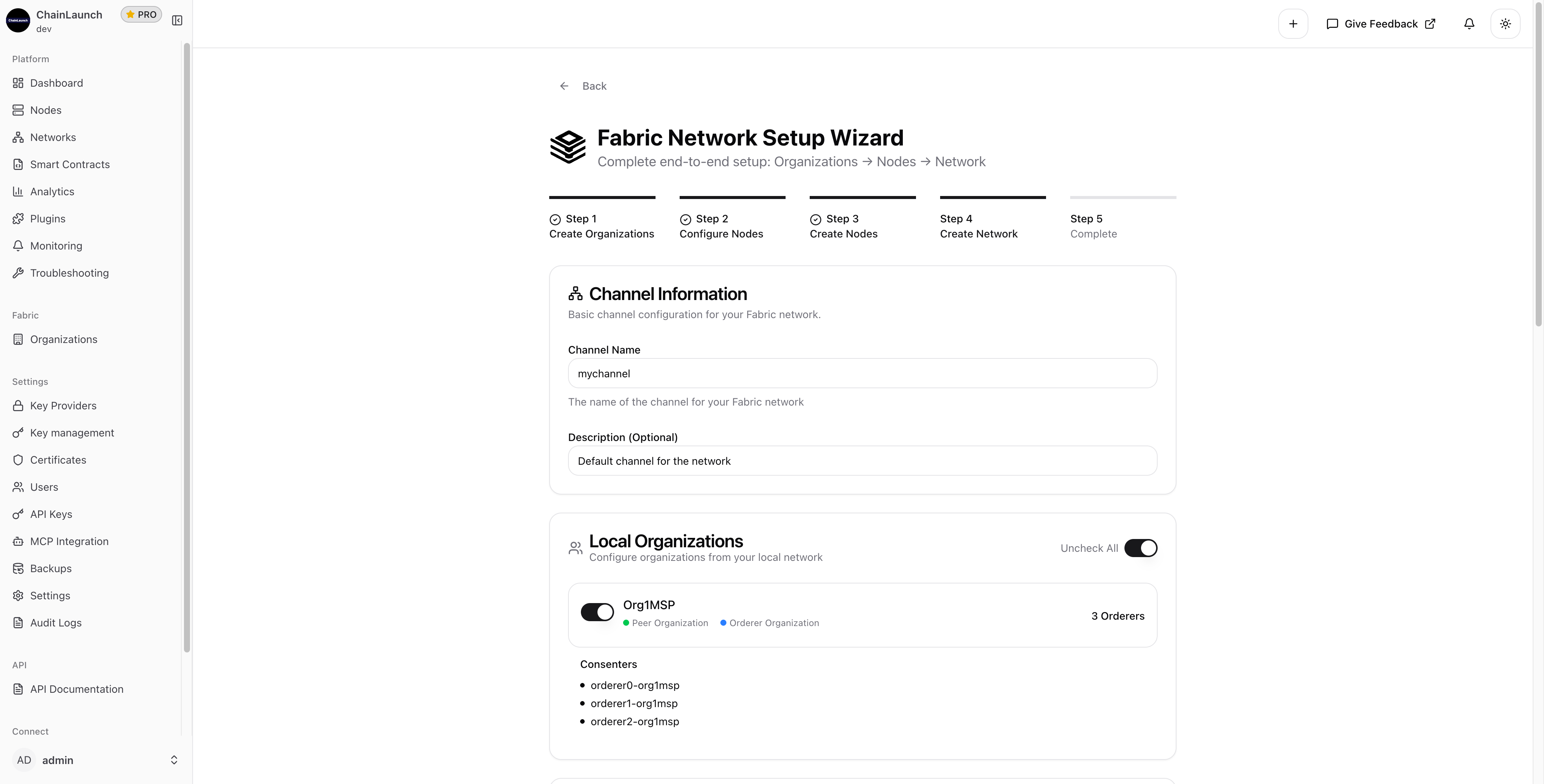
Channel creation and peer joining
The biggest time sink in Fabric deployments isn't the deployment itself — it's debugging misconfigured cryptographic materials. Automating certificate generation eliminates the single largest source of setup failures.
Need help? Check out our documentation or reach out to our support team.
David Viejo is the founder of ChainLaunch and a Hyperledger Foundation contributor. He created the Bevel Operator Fabric project and has been building blockchain infrastructure tooling since 2020.
Free resource
3 Config Mistakes That Break Fabric Networks in Production
The checklist our team uses before every Fabric deployment — covers peer gossip, orderer raft settings, and CA enrollment traps that cause 80% of production failures.
We publish when we have something worth saying — tutorials, cost breakdowns, and production lessons from real deployments.
Work email only · Unsubscribe anytime
From the founder
Skip weeks of setup — get to production in minutes.
Most teams spend weeks on infrastructure before writing a single line of business logic. Book a call and I'll show you how ChainLaunch cuts that to minutes — and whether it's the right fit for your project.